Summary: If you have administrative access, you can change anyone's access level, besides your own. This article shows how. See this article to learn about the possible levels of access.
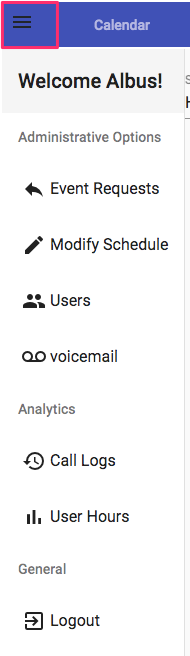
Step 1: Log in, and click the three horizontal lines in the upper left hand corner. You'll see a menu similar to this one:
Step 2: Click Users, you'll see the list of all users that have accounts with your organization, besides yourself. For example:
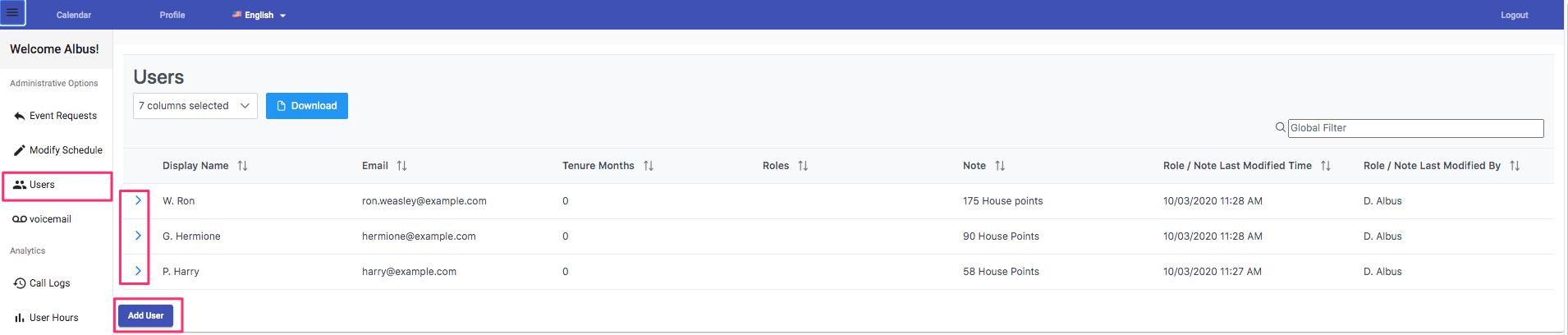
Step 3: Select the user you would like to edit by clicking the arrow > next to them. In the example below, we've clicked the arrow next to the user named "W. Ron"
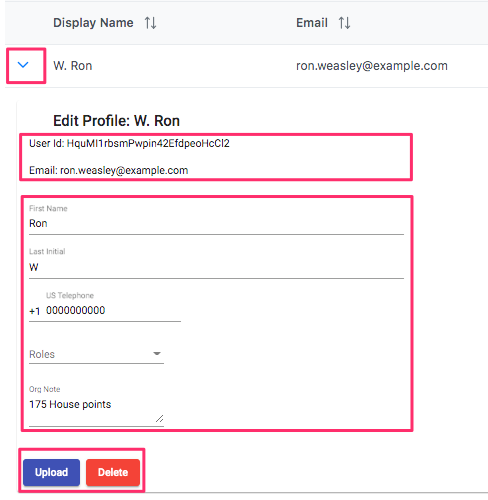
Step 4: You can edit any of the properties that you see here. For example, this first name, last initial, phone number, or access level. To edit their access level simply choose the desired access level from the Roles dropdown, and click upload.
Step 5: Congrats, you're done!
Comments
0 comments
Article is closed for comments.